
Cut the ethernet cord and join the Wi-Fi Raspberry Pi revolution!
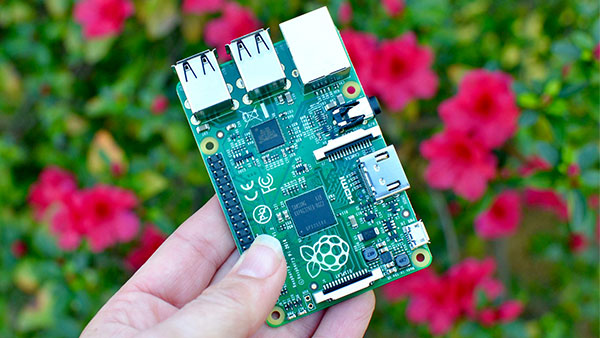
The Raspberry Pi mini-computer is so small that those dangling USB cables can make creating projects cumbersome. You can cut out the cable that connects it to the Internet by switching to Wi-Fi. All you need is a compatible USB Wi-Fi adapter, which you can pick up at most electronics and office supply stores. The setup process is simple if you follow the steps below.
How to connect the USB Wi-Fi adapter
Before you boot up your Raspberry Pi, make sure the Wi-Fi adapter is plugged in.
-
Connect the Wi-Fi adapter to any open USB port on the Raspberry Pi.

- Connect all additional peripherals, like the monitor, keyboard and mouse.
-
Connect the Raspberry Pi to its microUSB power source.

When the Raspberry Pi boots up, it will automatically recognize the Wi-Fi adapter if it is compatible.
How to check to make sure Raspberry Pi recognizes your USB Wi-Fi adapter
It is important to make sure your Wi-Fi adapter is compatible with your Raspberry Pi. Adafruit has a list of compatible Wi-Fi adapters for Raspberry Pi, but a Google search will bring a plethora of options. Once your Raspberry Pi has booted up, you can check the boot list to make sure it recognizes your Wi-Fi adapter.
- Select Terminal to open a command window. It is the icon in the upper left corner of the screen that looks like a computer monitor
-
When Terminal opens, type the following command: dmesg | more

- Press Enter on the keyboard. A long list of boot code will appear.
-
Tap the space bar to page down, about 10 times, until you see the highlighted boot reference below.

This code confirms that Raspberry Pi recognizes the connected USB Wi-Fi adapter. If the highlighted code isn't on the boot list, your Wi-Fi adapter may not be compatible.
How to log on to the local Wi-Fi network
Logging on to the local Wi-Fi network is just about as easy as joining on your home computer.
- Select the Wi-Fi icon in the upper right corner of the screen. A list of nearby networks will appear.
-
Select the network you wish to join. A password entry window will appear.

- Enter the Wi-Fi password in the form next to Pre Shared Key.
-
Select OK.

You will be logged onto the local Wi-Fi network and ready to go online.

How to set up Wi-Fi on Raspberry Pi posted first on http://bestpricesmartphones.blogspot.com

No comments:
Post a Comment